Generate Unreal Engine Blueprints with an AI Agent (Aura) — Step-by-Step
By Kristani
Meet Aura, an Unreal AI agent that builds and edits Unreal Engine Blueprints. Learn best practices for faster iteration: plan, prompt, review, and refine.
- Blueprints
- Unreal AI Agent
Aura is an Unreal AI agent that can generate and edit Blueprint graphs directly in Unreal Engine. This guide covers a recommended workflow for working with Aura, from planning to prompting to reviewing changes.
Step 1: Plan your Blueprint with the Unreal AI Agent
Before you generate anything, use Aura to plan the Blueprint end-to-end.
Example prompt:
“Plan a Blueprint for a companion that follows the player and bobs up and down. There should be a tune-able follow speed and stopping distance so the player and companion never overlap.”
Planning tips
-
Give Aura relevant files as context (your character Blueprint)
-
For more complex Blueprints, break down planning into small parts.
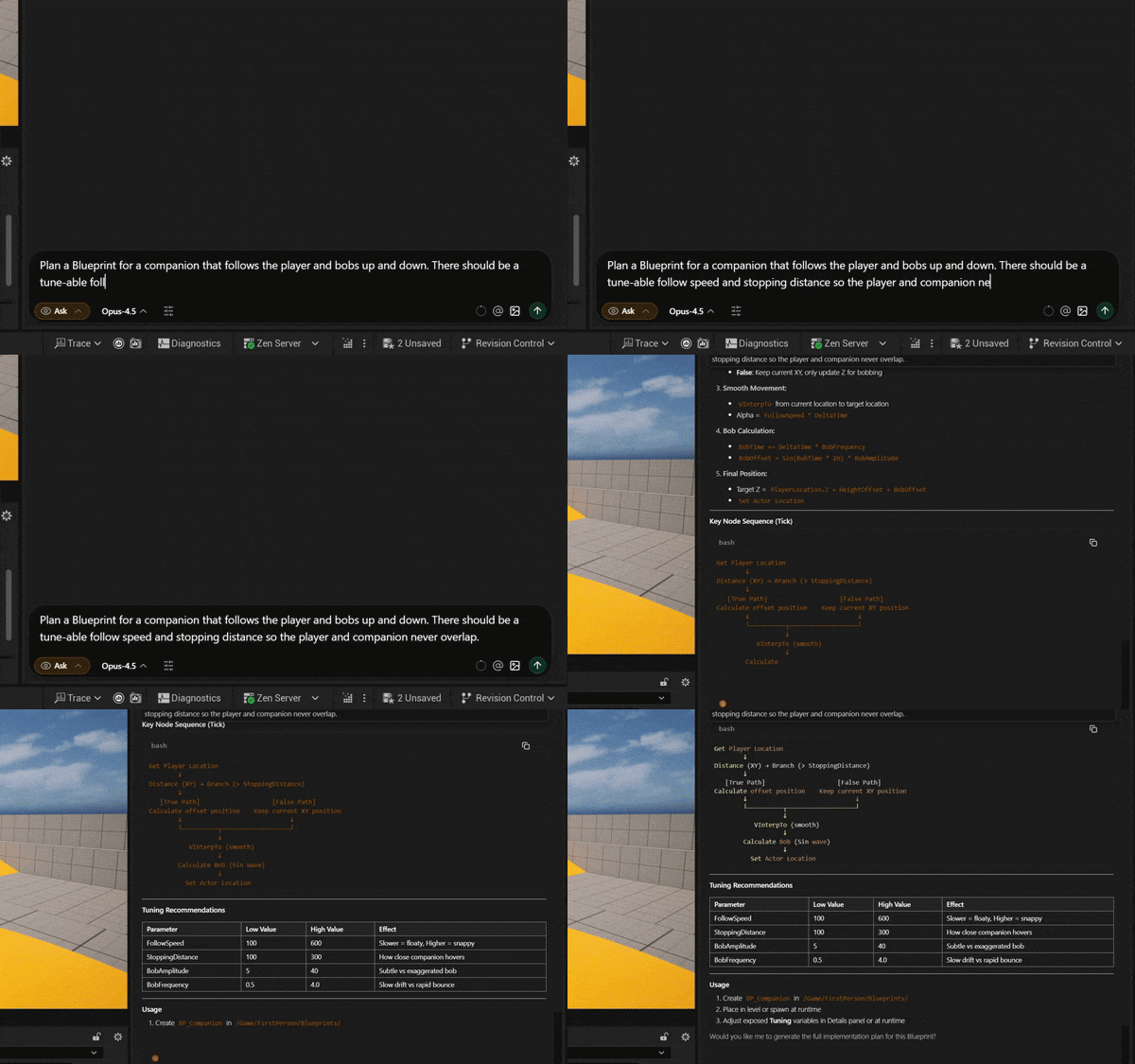
Planning first gives room for brainstorming and reduces rework.
Step 2: Prompt the Unreal AI agent with clear Blueprint logic
When you’re ready to build, keep in mind that prompts work best when they are:
-
clear
-
specific
-
include a trigger/condition
Again, give Aura relevant files as context when possible too.
Good vs bad prompts
✅ Good:
-
“When I overlap an actor of class
BP_Enemy, callApplyDamageon it.” -
“When
OnHittriggers, spawn VFXFX_Explosionand play soundSFX_Hit.”
❌ Bad:
-
“Make this kill the enemy.”
-
“Add VFX to this projectile.”
Step 3: Create or edit a Blueprint with Aura (Agent Mode)
Aura’s Agent mode can create and edit Blueprints for you.
How to create/edit a Blueprint
-
Switch to Agent mode
-
Prompt Aura with what you want (use the prompting tips above)
-
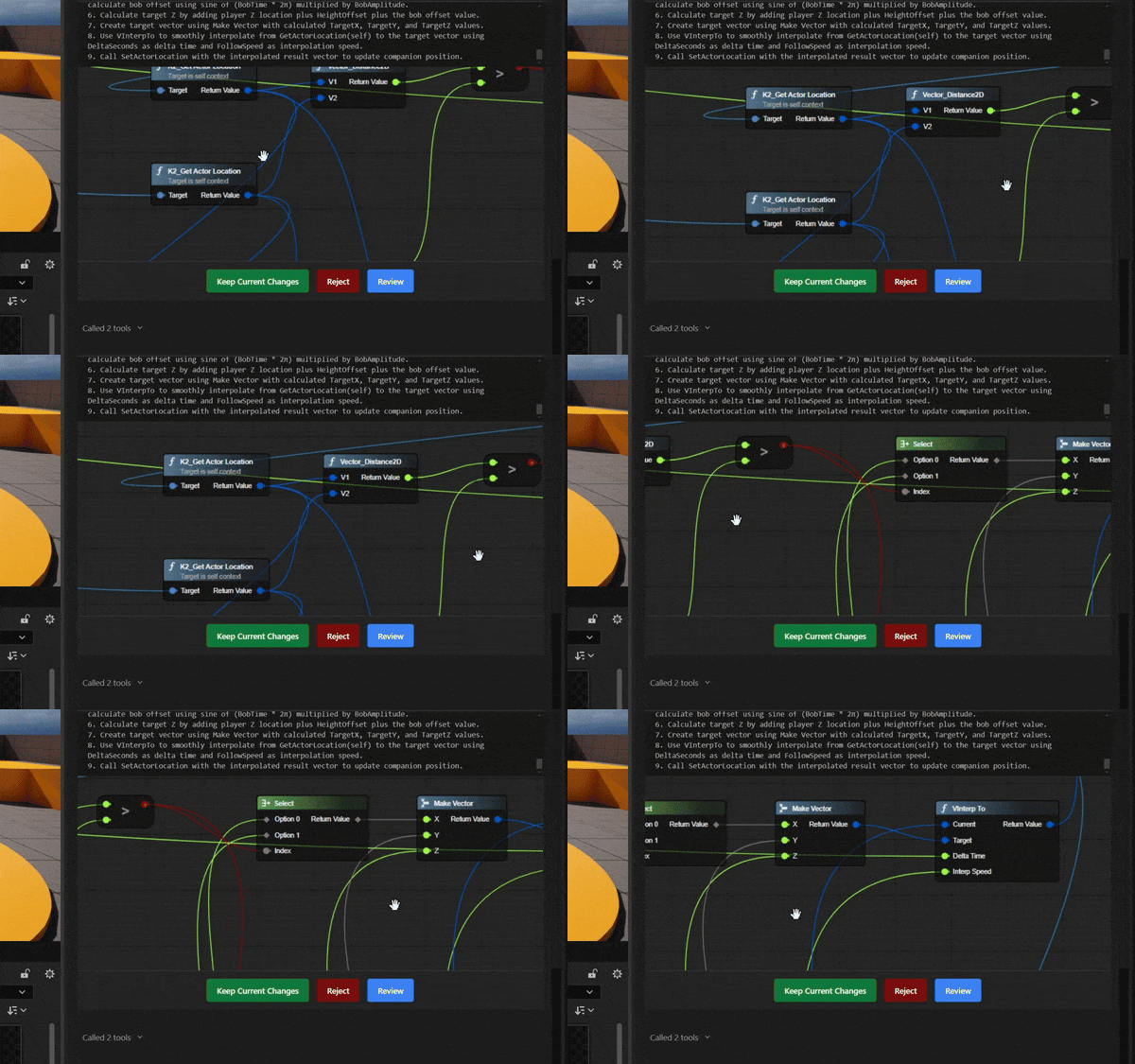
Aura will livestream changes directly in chat
-
You’ll see options to:
-
Keep Current Changes
-
Reject
-
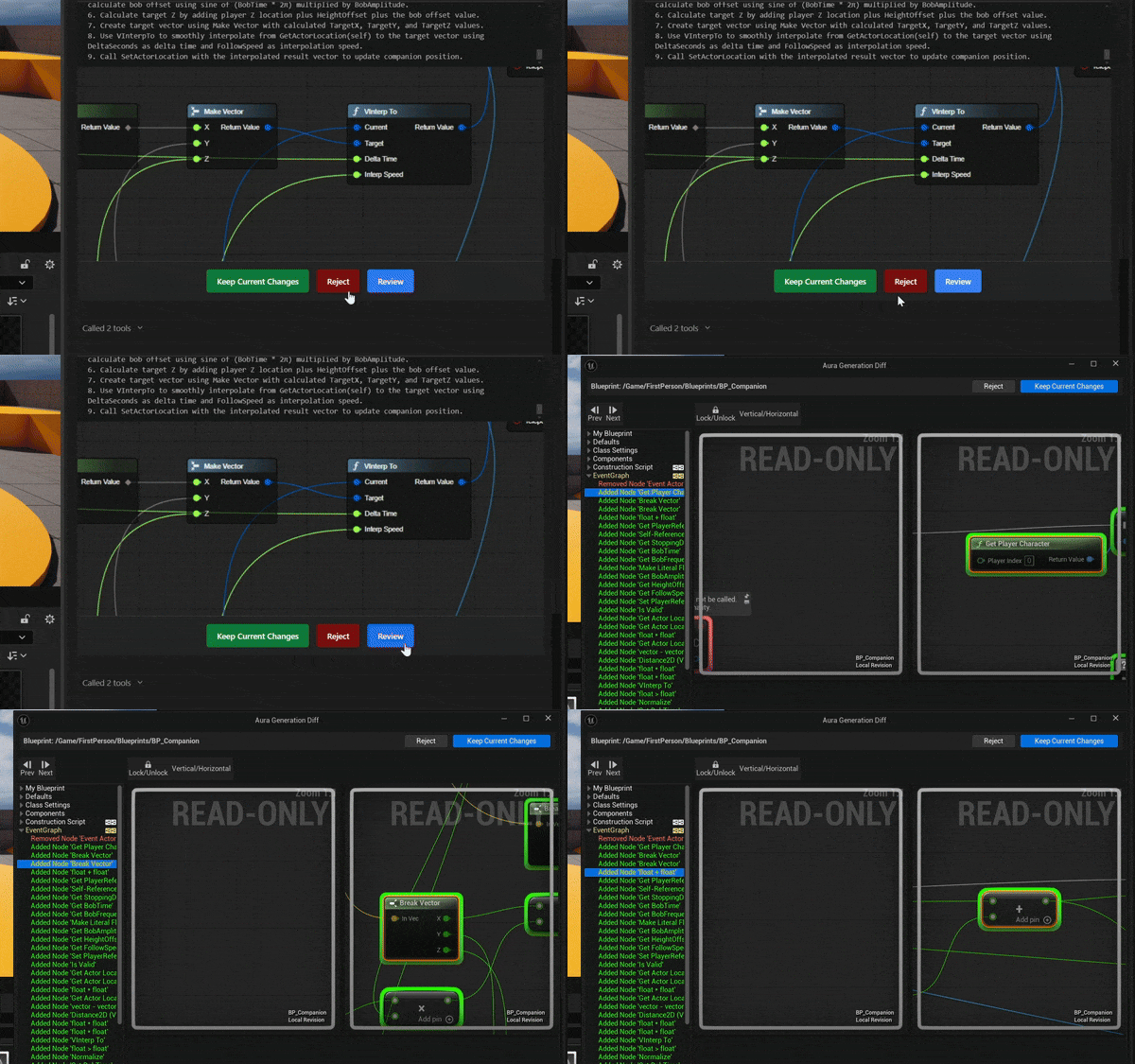
Review (via Unreal’s Blueprint Diff tool)
-
Learn more about what Aura (Agent Mode) can do.
Step 4: Break Blueprint systems into small parts (this is the cheat code)
Avoid trying to one-shot a system. Aura is more effective when you break work into smaller parts that can be easily tested along the way.
Instead of asking Aura:
“Create an inventory system.”
Break it into small components like:
-
Data definitions:
“Help me define the item data I need (ID, name, icon, max stack, type) and advise whether it should live in Data Assets, Data Tables, or structs.”
-
Inventory logic:
“Outline the core functions for an Inventory Component (Add/Remove/Has/GetQuantity) and edge cases I should handle (overflow, full inventory).”
-
UI layer:
“Give me a high-level UI approach for a grid/list inventory that reads from the Inventory Component and refreshes via events.”
-
Interaction flow:
“Describe a pickup/drop flow (world pickup actor → interact → add → update/destroy pickup) for the player character.”
-
Persistence:
“What inventory data should go into a Save Game object, and how do I restore it on load?”
This approach helps you:
-
validate each part quickly
-
keep changes contained and reversible
-
prevent issues that are hard to debug
Step 5: Review AI-generated Blueprint changes and test often
When Aura creates or edits a Blueprint, don’t accept everything at once.
Instead:
-
Use Review (Blueprint Diff) to understand what changed
-
Test immediately (Play in Editor) before keeping the changes
-
Repeat in small iterations
This workflow is faster than merging a huge graph and trying to debug everything afterward.
TL;DR: AI Blueprint generation workflow with Aura
-
Plan the Blueprint first
-
Write a clear, specific prompt. Give Aura relevant files when possible.
-
Use Agent mode to generate/edit
-
Work in small parts
-
Review + test between iterations before accepting changes
If you want a quick first win, start with a small system like a jump pad, interactable pickup, or basic spawner, then scale up from there.
Aura is an AI assistant for Unreal Engine built for Blueprints. If you want an Unreal AI agent that can implement changes and let you review them safely, try it at https://www.tryaura.dev.
End of dispatch
Back to the newsstand