Documentation

Art Tooling
Aura’s art tools are designed for rapid prototyping. They help you explore visual ideas, create references, and quickly test concepts all directly inside Unreal.
💡 Art tools can take a few minutes to run, remember you can work in multiple chat threads at the same time (up to ~4)!
To use the tools below, make sure you’re in Agent mode first.
Image Generation
Aura can help explore visual concepts, create tiling textures, and create reference images based on text descriptions. Reference images can also improve results when generating 3D models.
Examples
-
“Create an icon image for a ring of dexterity that has a green gemstone.”
-
“Create a seamless tiling texture of a stylized cartoon stone wall.”
-
“Create 3 image variations of a supernatural shadow entity enemy. They should be on a white background too”
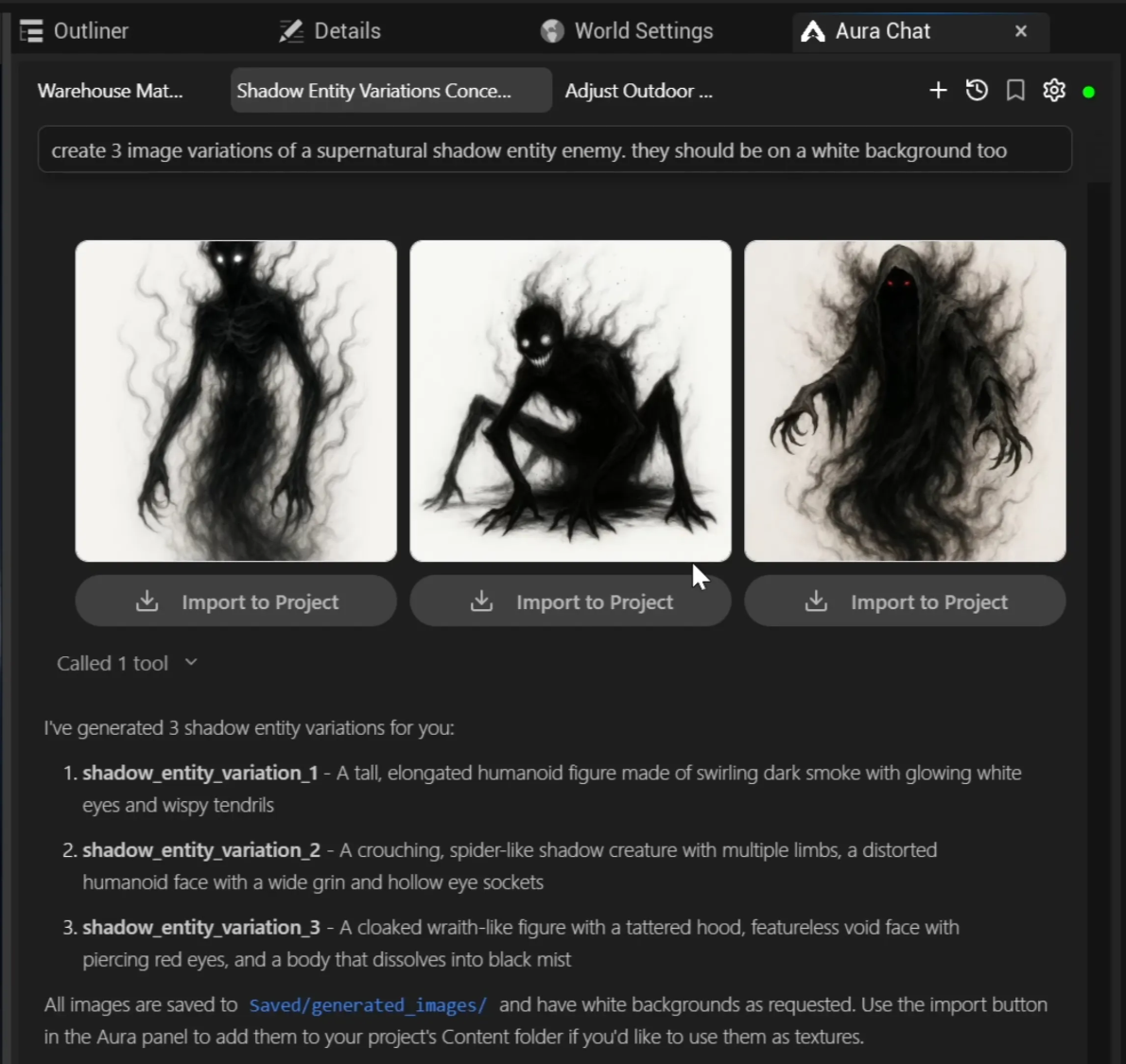
Images are generated at a high quality resolution. You can specifically ask Aura for a “low resolution” image which will speed up generation time. Generated images appear as thumbnails in chat. Click any thumbnail for a fullscreen view.
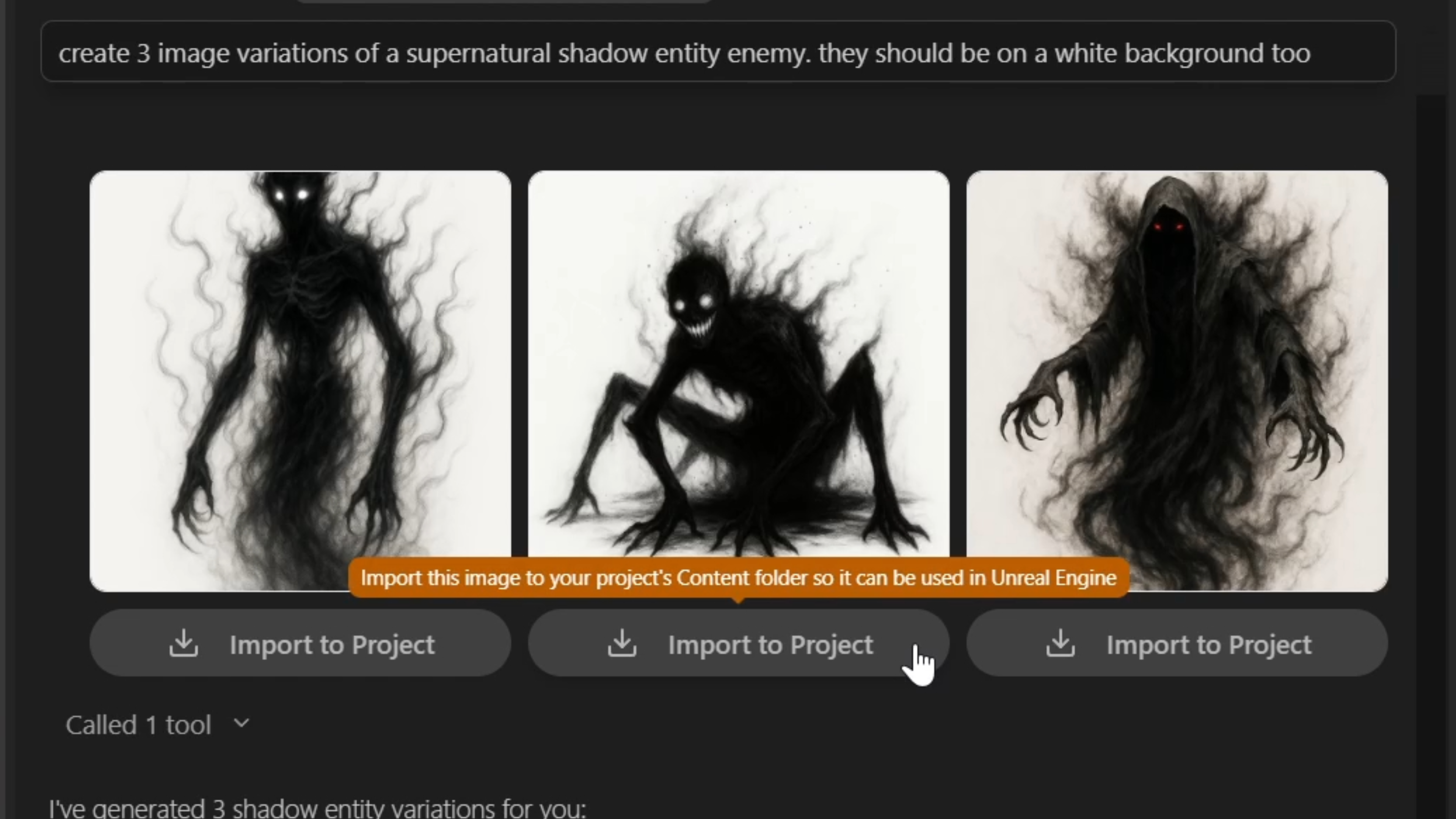
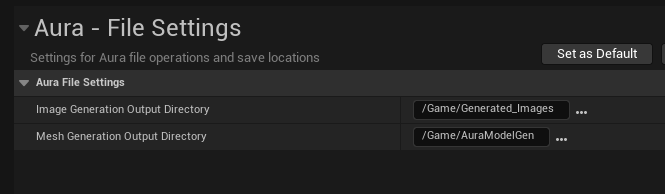
If you’re happy with an image you can save it by clicking the Import button. By default images are saved in Content/Generated_Images/. You can customize the save folder in Editor Preferences (see Additional Settings).
Note: Un-imported image generations are not lost/discarded. You can find them in {ProjectFolder}/Saved/generated_images
Image Editing
You can iterate on an image with Aura by describing changes you’d like to make. Aura will create a new copy of the image with the requested edits.
💡 Since Aura is aware of all the images in a thread, when editing an image in a thread with many images, it’s useful to tell Aura specifically which image it should edit. i.e. “Edit the image of the dog wearing a tophat by adding a monocle and a bowtie”
Examples
-
”Edit this image and change the ring’s gemstone to green.”
-
”Put the ring on a white background instead.”
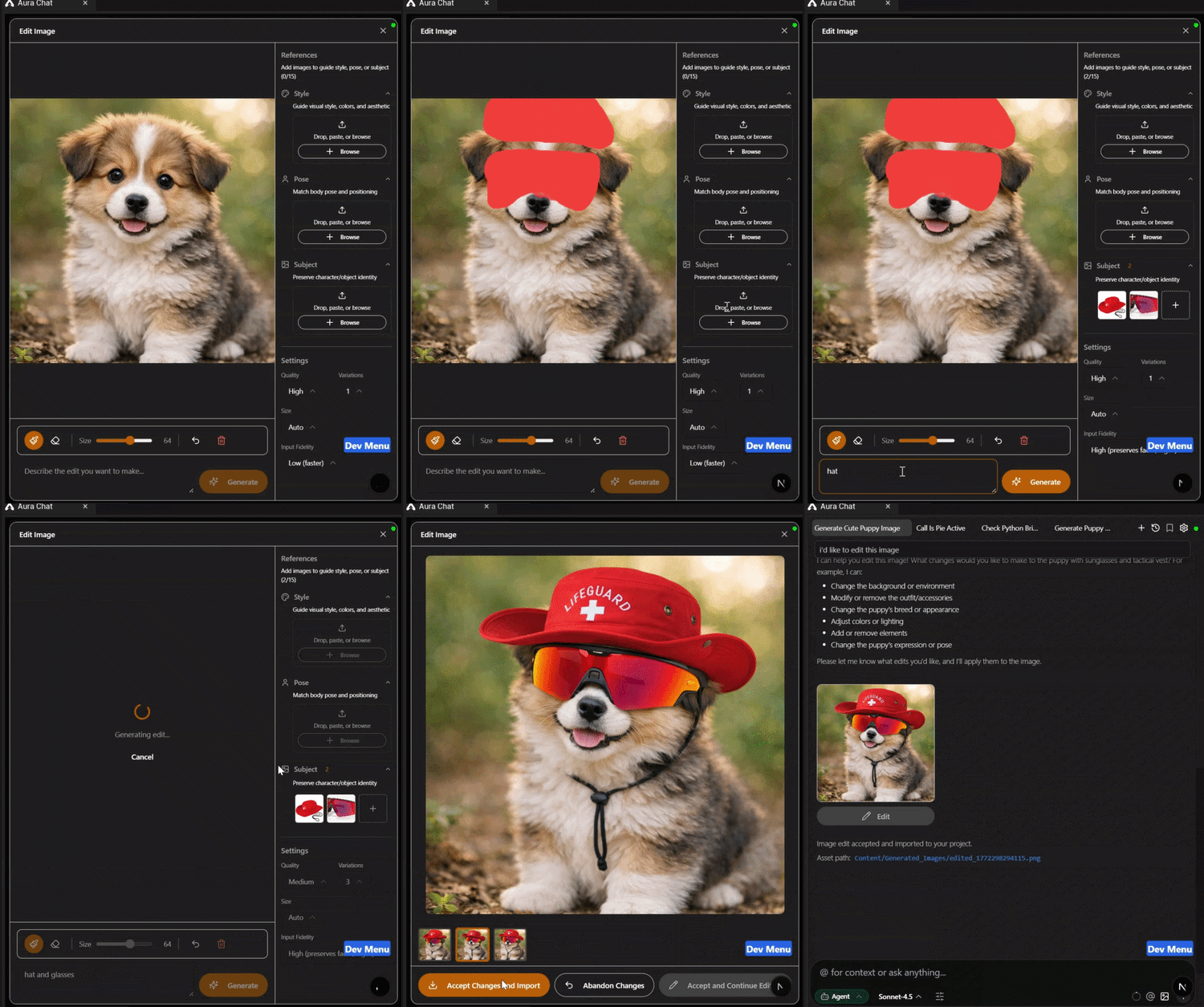
For more precise control, you can open any generated image in the image editing tool — a dedicated modal for in-painting and reference-guided edits.
To use it, press the Edit button below generated images in a thread. To edit an existing image, add it to chat context and prompt Aura to edit the image. It should show up in the thread with the Edit button below it.
In-Painting Canvas
In-painting allows you to use a painting canvas with a brush-based interface to mask specific areas of the image for targeted edits. The model attempts to preserve details outside the masked area.
To use it:
-
Use the brush to paint a mask over the area you want to change.
-
Type a prompt describing what should fill the masked area and hit send.
-
Preview the result, then click Accept to save it to your chat thread — or paint a new mask and try again.
Reference Panel
The Image Edit Tool has a reference panel on the side where you can load an image to guide the style, pose, or subject of your edit.
-
Paste image data directly to the active reference panel indicated by the blue outline.
-
@-mention a texture from the Unreal Content Browser, or drag one in (in-editor Aura only) — it will automatically route to the active reference panel indicated by the blue outline.
-
Or click the upload button in the reference panel to pick a local file.
Model Generation
Aura can create 3D models based on text prompts and reference images.
It may take a few minutes depending on current request traffic and complexity of the request. Once complete, the model is conveniently added to your current level for viewing.
- By default, generated models are capped at ~50,000 faces unless you request higher detail or specify a face limit in your prompt e.g. “face_limit=1000”.
💡 Model generation is intended for prototyping and visual exploration. Assets may not be production-ready.
Examples
-
“Generate a model of a magical wooden staff with a red crystal at the top.”
-
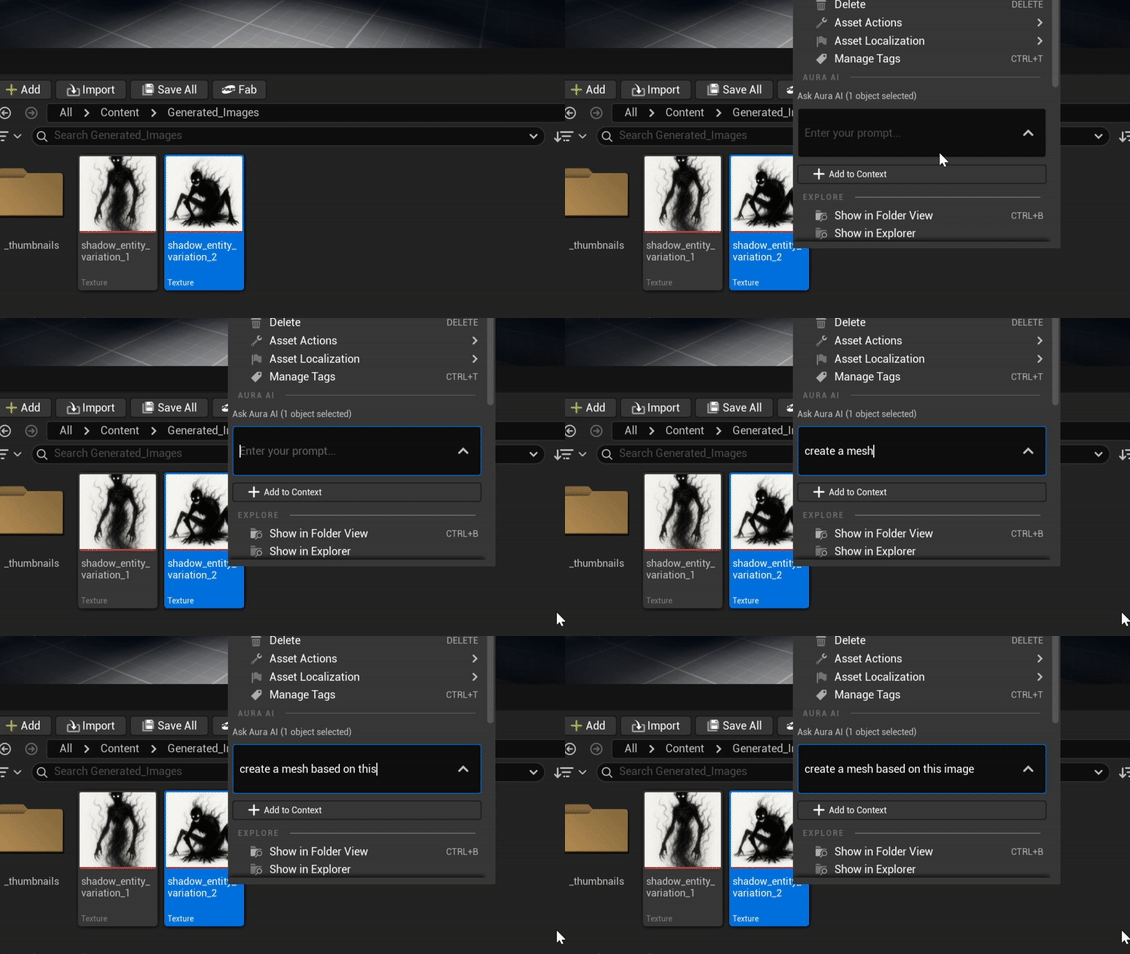
After giving Aura the reference image, or right-clicking in content browser, “Generate a model based on this image”
Models are saved in /Game/AuraModelGen/{ModelName}/.
You can customize the save folder in Editor Preferences Advanced Settings.
Workflow Tips
-
Using a reference image will lead to better results. Reference images are also the best way to get a consistent style across models.
-
When working with low polycounts, model gen will produce better results when using image-to-mesh workflow versus text-to-mesh.
-
You can specify scale in your prompt, “Generate a model of a wooden staff that’s 1.5 meters tall”
-
You can also specify pivot location to be at the center or bottom of the model. By default it will almost always set the pivot to the bottom.
Character Rigging

Aura can generate rigged character models (SkeletalMesh with a skeleton) directly from text or image prompts. Just include "rigged" in your prompt.
- "Generate a rigged humanoid character"
Characters default to an A-pose (palms facing inward), which is optimal for Unreal's mannequin skeleton. You can also request a T-pose.
You can also rig an existing StaticMesh by giving it as context and asking "Rig this model". Static meshes must be character biped assets. Rigged models are saved as SkeletalMesh assets in the same location as regular model generations. This feature is only available in Agent mode.
💡 For best rigging results, generate an orthographic front view image of a character in an A-pose first, then ask Aura to generate a rigged model of that image.
Animation Retargeting
Aura can replace characters in your game with different skeletal meshes while preserving all existing animations. Aura handles the full pipeline automatically: creating IK rigs, retargeters, aligning forward direction, and batch-converting animation assets.
- "Replace the player character with my custom skeletal mesh"
This feature has been optimized for replacing UE Mannequin-based character setups like the UE ThirdPerson template project. This feature is only available in Agent mode.
Material Agent
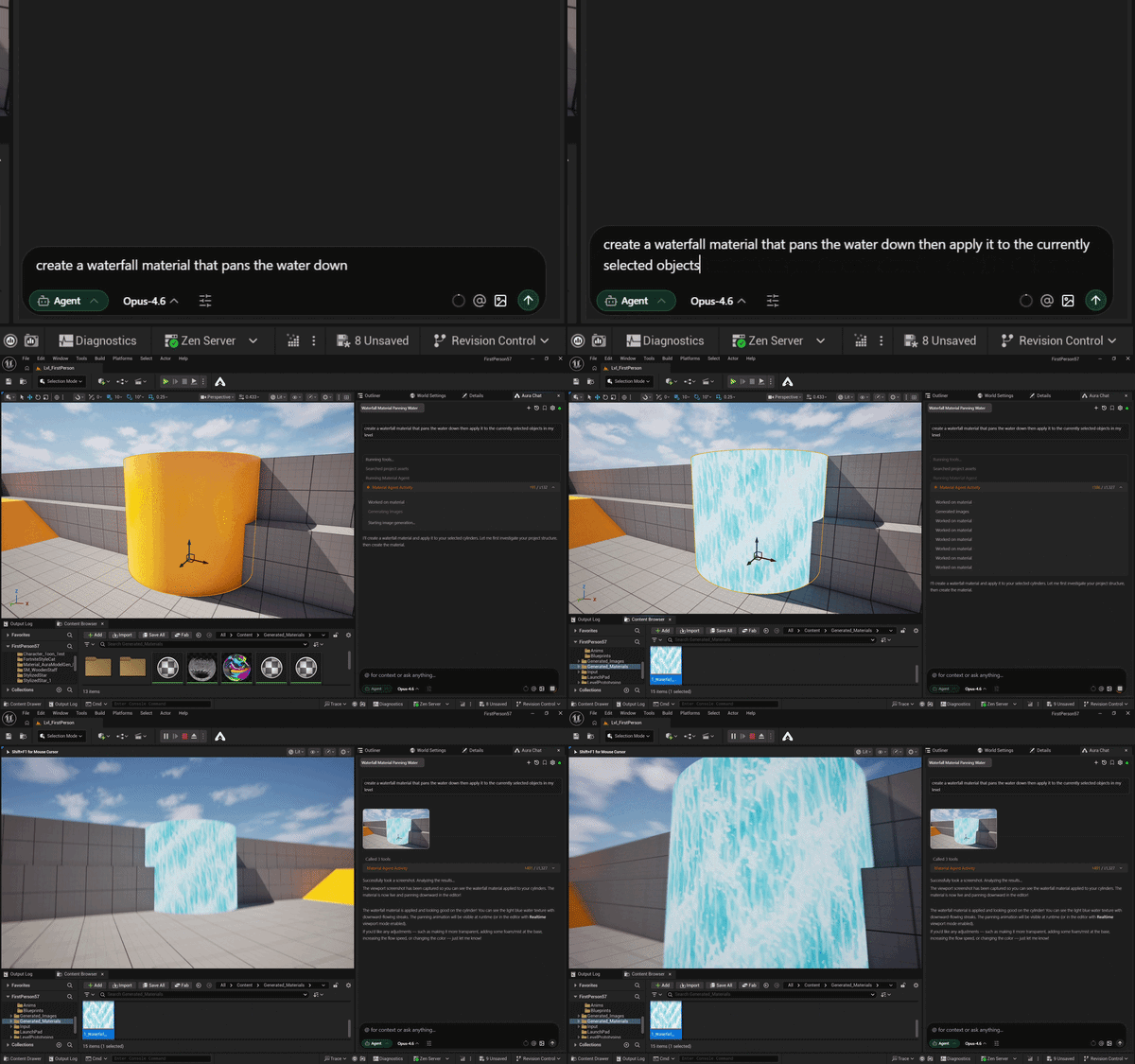
Aura can create and edit Unreal Engine materials from text descriptions. Describe the look you're going for and Aura will build the material graph, set up parameters, and save it to your project. Aura can apply the material to actors and assets too.
What Aura can create:
-
PBR materials (base color texture, metallic float value, roughness float value, specular float value)
-
Unlit materials
-
Emissive / glow effects
-
Panning / animated materials (waterfalls, energy effects)
-
Water materials with wave motion
-
Decal materials
-
Landscape materials with multiple layers
Examples
-
”Create a tree trunk material for a redwood tree.”
-
”Create a glowing energy crystal material with adjustable intensity.”
-
”Create an unlit stone wall material and apply it to the selected object in my level.”
-
”Create a waterfall material that pans the water downward.”
-
”Create a decal material for bullet holes.”
-
”Create a landscape material with three layers: grass, dirt, and rock.”
You can also make follow-up edits in the same thread:
-
”Change the energy crystal material to a more purple color.”
-
”Add a fresnel edge glow to the material.”
💡 Create a piece of simple geometry (a Box or Plane) in your level first — it makes it easy to drag materials onto it and see results immediately.
Custom HLSL Nodes
As of v0.13.5, the Material Agent can create custom HLSL nodes, allowing it to build more advanced material designs that go beyond the standard node graph.
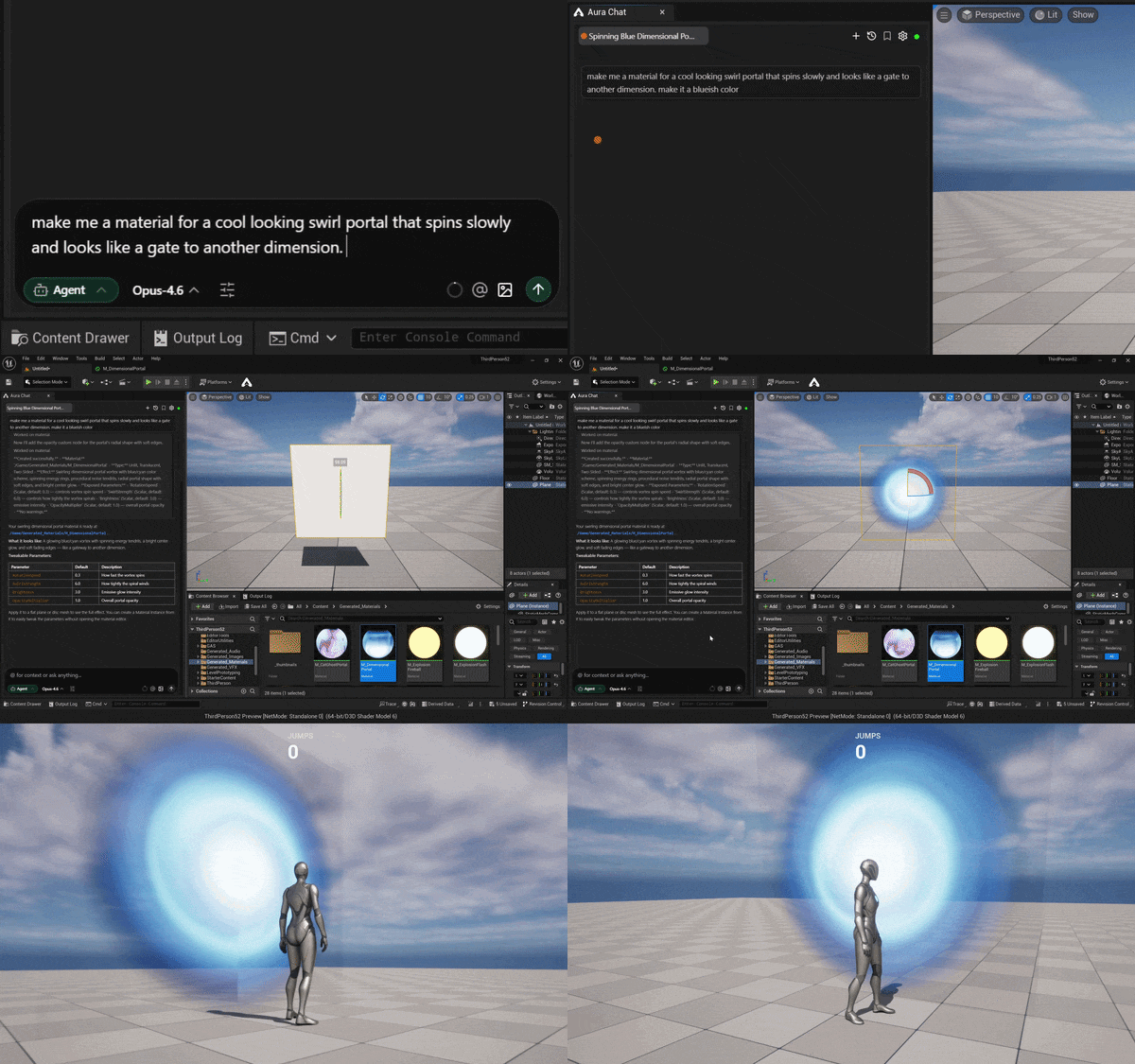
Example prompt:
- "Make a material for a cool looking swirl portal that spins slowly and looks like a gate to another dimension. Make it a blueish color."
Texture generation
Aura will generate a color texture to go with your material. Keep in mind that Aura cannot currently generate normal maps, roughness maps, or other non-color textures — it will let you know when one of these would improve the result so you can source it separately.
Save location
Generated materials are saved to the directory set in Edit > Editor Preferences > Aura > File Settings > Material Generation Output Directory.
⚠️ Known limitation: Material node graphs are currently laid out without spacing, so all nodes will appear stacked in the center of the graph. This is a cosmetic issue only — the material will function correctly.
Additional Settings
How to Change Save Locations
-
In Unreal go to Edit > Editor Preferences
-
Scroll down to Aura > File Settings
-
From here you can change the default folder for Image and Mesh Generations.