Start here
Installation Issues
Sometimes Aura may fail to install or upgrade properly (due to running background process such as UE, Aura, or Python) and will cause issues with Aura at start-up. The installer will attempt to detect and close these background processes, but there are instances where it can fail to do so. A clean re-install will typically solve this.
To execute a clean re-install, follow these steps:
-
Confirm that no instances of Unreal Engine or Aura are running and they are fully closed. Double check that the Aura instance in the system tray has closed (force close it if not).
-
Go to Windows settings 'Add Remove Programs' and uninstall both entries of Aura.
-
(Optional, only applicable on Aura version 0.15.5 and older) Keep your chat history: If you want to keep your chat history, copy out your local db at
{username}/AppData/Local/Programs/aura-client/next/node_modules/local_v5_0.dbinto another folder for safe keeping. -
Next, wipe Aura-related files from the following directories:
 {username}/AppData/Local/Programs/aura-client
 {username}/AppData/Roaming/aura-client
 Program Files/Epic Games/UE\_5.X/Engine/Plugins/Marketplace/Aura
 {gameproject}/Plugins/Aura
 {gameproject}/Saved/.Aura
-
Re-run the Aura installer. You can always find the latest installer in your account.
-
(Optional) Paste in your local db file back at
{username}/AppData/Local/Programs/aura-client/next/node_modules/
Common Causes:
-
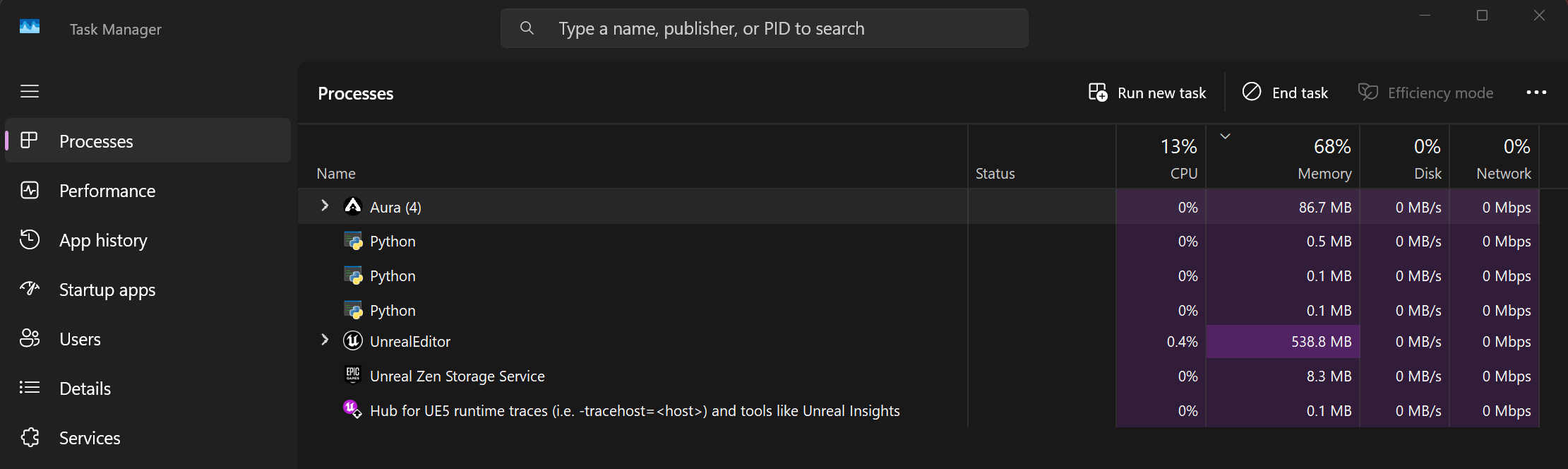
Unreal Engine or Aura-related process is running (check task manager)
-
Target installation folder is write-protected/read-only or user does have write permission (commonly caused filesystem locks from VCS like Perforce).