
Documentation

Blueprints
Aura can plan, create, and edit Blueprints. This page outlines the different ways Aura can help with Blueprints.
Planning Blueprints
Aura can help you plan a Blueprint from start to finish. We recommend planning with Aura in Ask mode first before having Aura make edits. Planning first allows for quicker iteration with Aura and can save rework later on. Once you think a plan looks good, you can easily switch to Agent mode and have Aura follow the plan (see Blueprint Agent).
Examples
- “How can I make my character double jump?”
- “How do I make an inventory system for my enemy?”
- “How do I make an extraction point that ends the game 30 seconds after you enter it”
- “I want to add a notification sound that plays when the player's dash cooldown ends. Provide steps to implement this. I want to use blueprints only: no C++.”
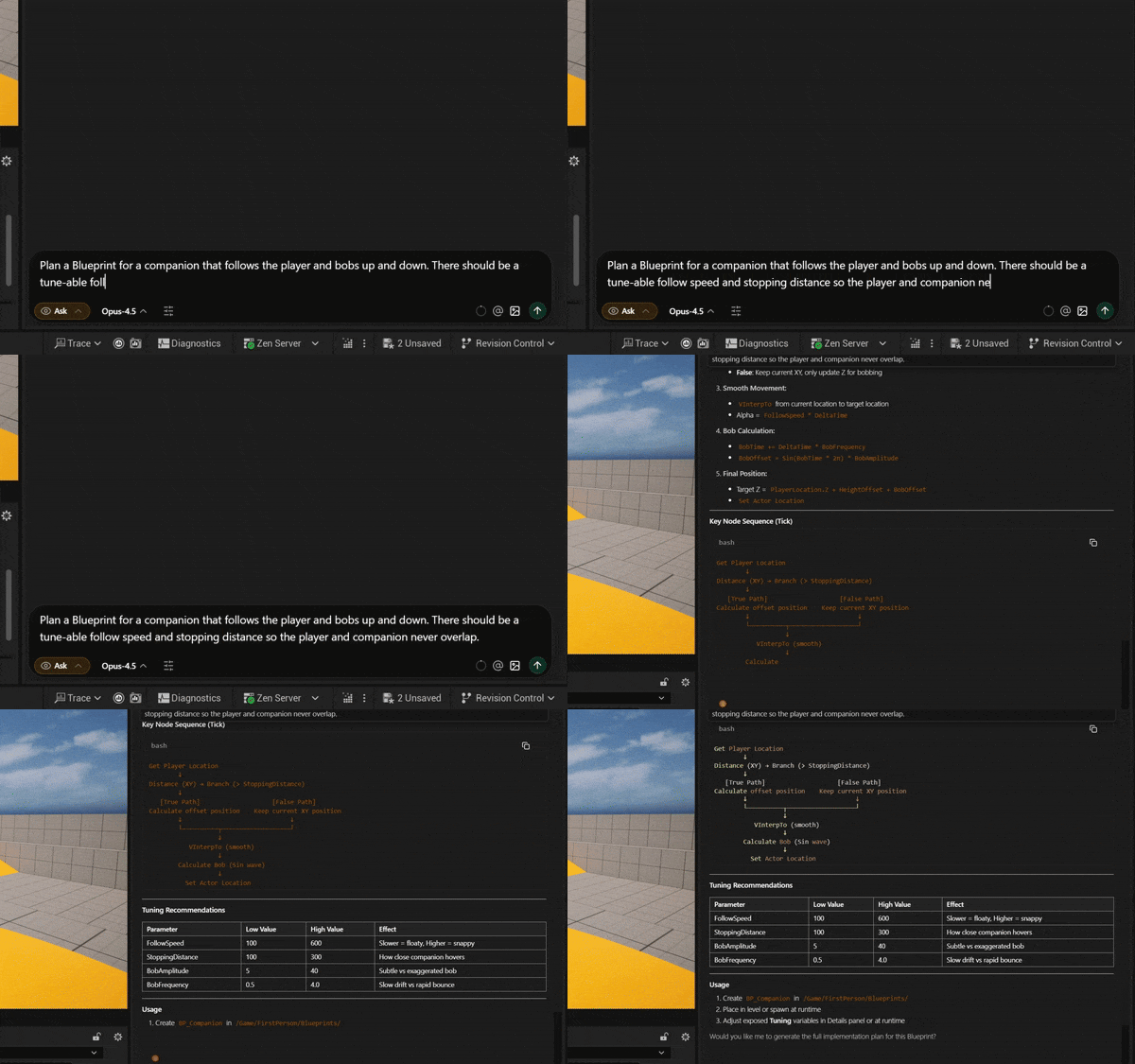
- “Plan a Blueprint for a companion that follows the player and bobs up and down. There should be a tune-able follow speed and stopping distance so the player and companion never overlap.”
Planning Tips
- Give Aura files as context. This will help Aura tailor its plan accordingly.
- Breakdown planning into components. Avoid trying to one-shot a system as it can create room for error.
Blueprint Code Reviews
Aura can run comprehensive code reviews on your blueprints, like having a expert engineer on your team. It’ll analyze for typos, hanging nodes, logic errors and more. Code reviews focus on static analysis, logic errors, and convention. It is not meant to debug issues with your gameplay.
You can run reviews in two ways:
- Give the blueprint as context then simply ask Aura to review it.
- If you have Revision Control enabled, open the blueprint > click Diff > open a commit
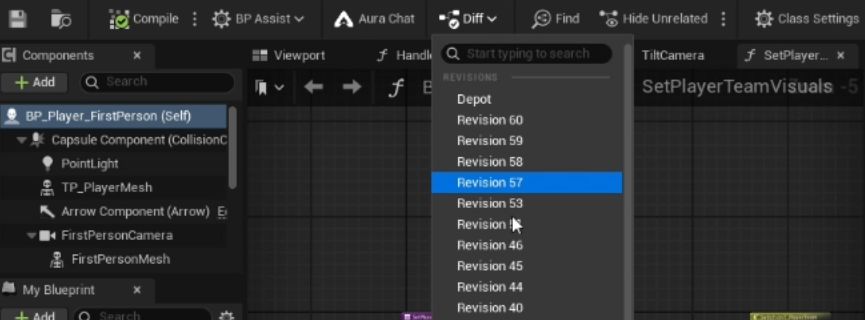
- Click the “Run Blueprint Code Review” button at the top right.
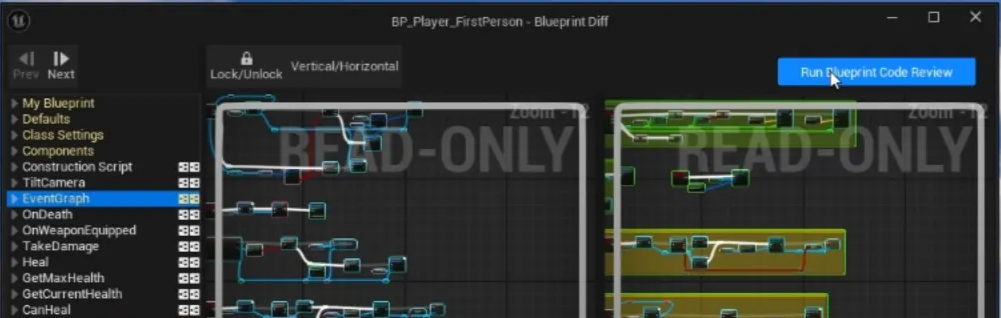
Reviews can take several minutes currently. Remember you can work in multiple chat threads at the same time!
Remember that Aura can make mistakes, always check the answer.
💡 Have particular naming conventions or styles for your blueprints?
Try setting up Custom Instructions that Aura will follow every time. Learn more in Advanced Settings
Telos Blueprint Agent
The crash course below utilizes Blueprint planning and generation.
Aura can now create and edit blueprints for you. Blueprint generation is still in early development and so Aura can’t one-shot complex systems (see Support Systems), but it can certainly help you get started.
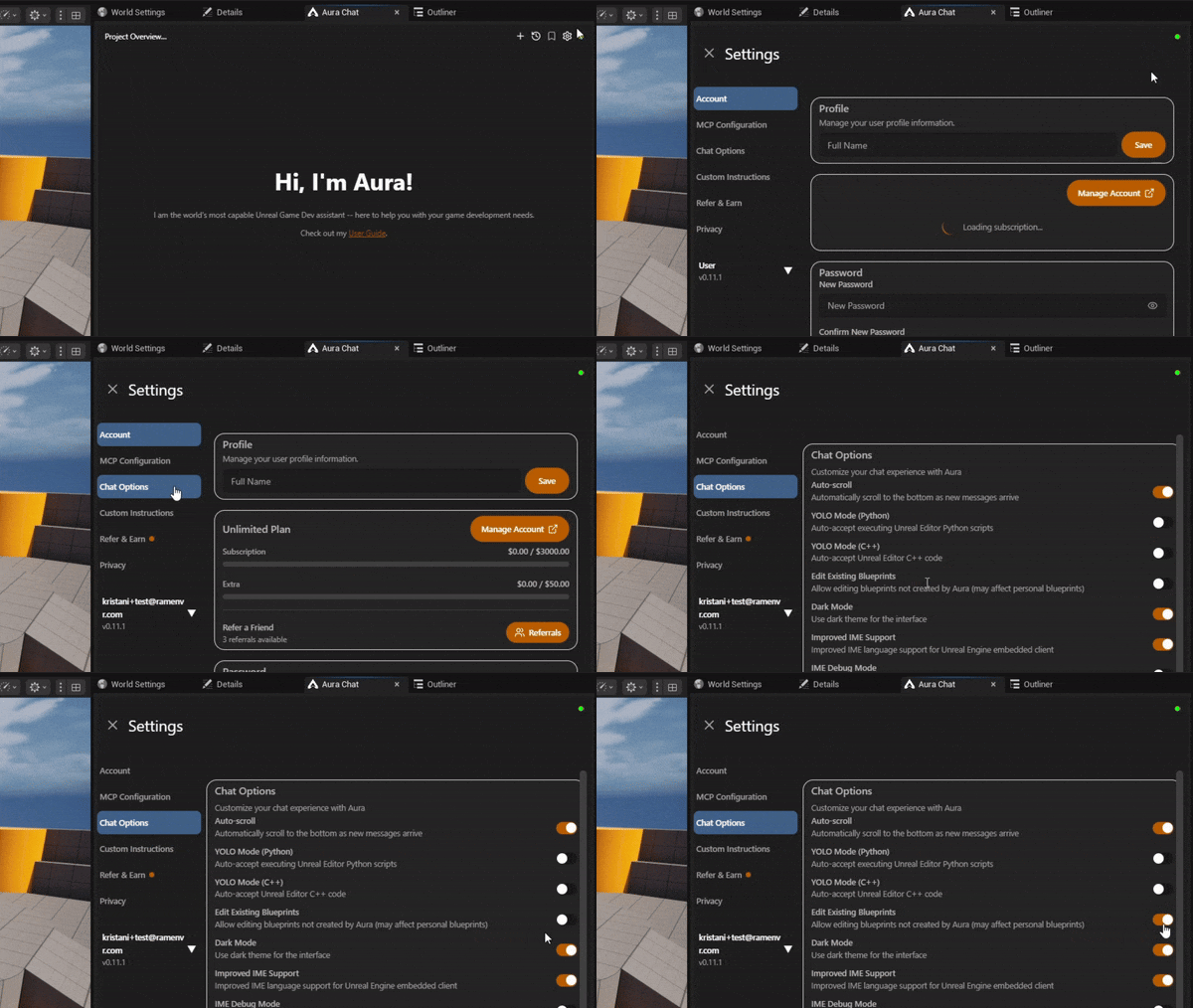
⚠️ By default Edit Existing Blueprints is turned on. You can toggle this in Settings > Chat Options > Toggle on “Edit Existing Blueprints”
How to Create/Edit a Blueprint
- Switch to Agent mode
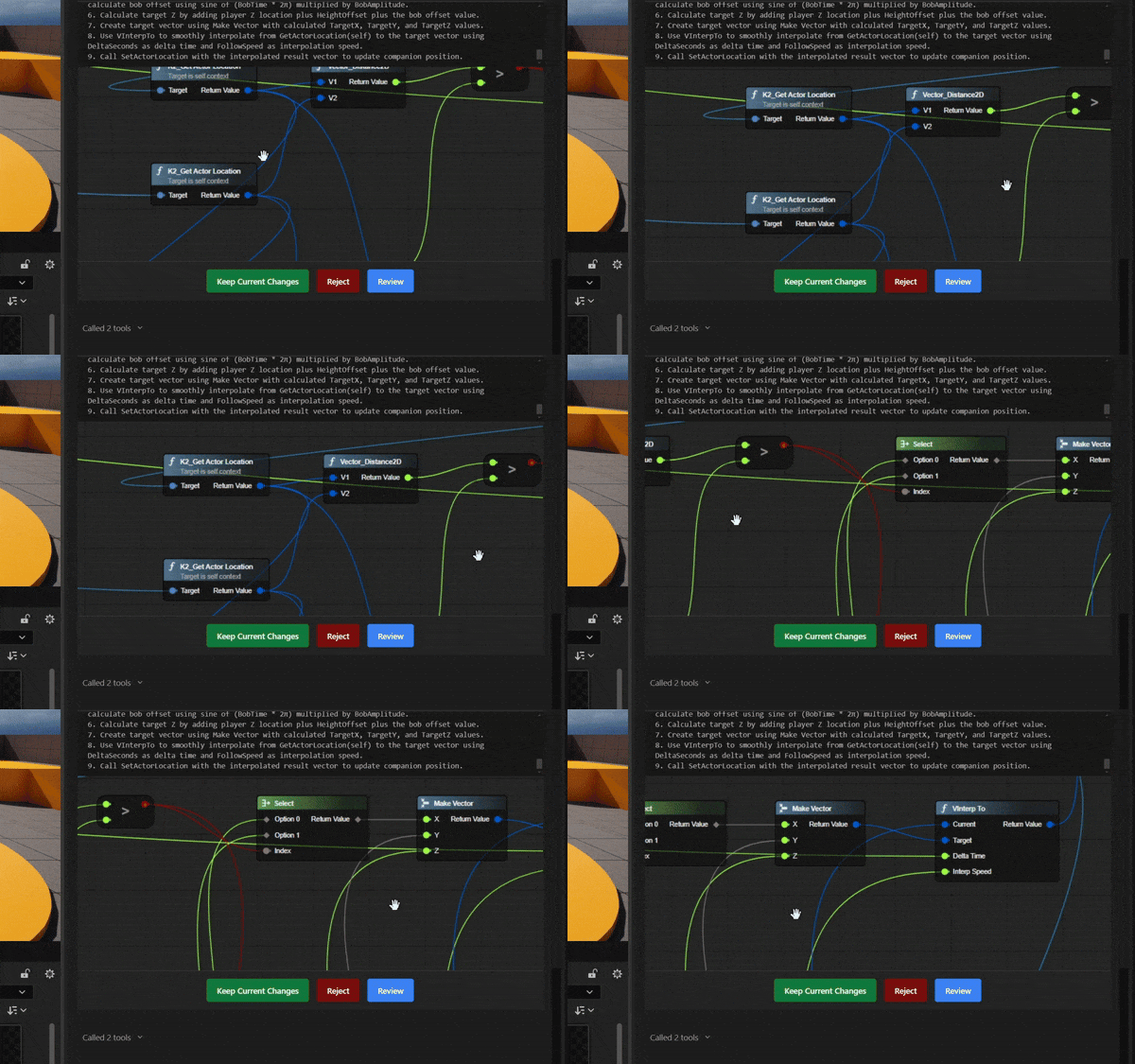
- Prompt Aura, for example: “Create a companion blueprint that follows the player and bobs up and down. There should be a tune-able follow speed and stopping distance so the player and companion never overlap.”
- Aura will livestream the changes directly in chat.
Workflow Tips
What we’ve found works well for this alpha version:
- Review the changes Aura made.
- Test immediately (Player in Editor) before keeping the changes. Give Aura feedback as needed.
- Repeat this in small iterations.
This workflow is faster than merging a huge graph and trying to debug everything afterward.
Avoid trying to one-shot a system. Aura is more effective when you break work into smaller parts that can be easily tested along the way.
Instead of asking Aura:
“Create an inventory system.”
Break it into small components like:
-
Data definitions:
“Help me define the item data I need (ID, name, icon, max stack, type) and advise whether it should live in Data Assets, Data Tables, or structs.”
-
Inventory logic:
“Outline the core functions for an Inventory Component (Add/Remove/Has/GetQuantity) and edge cases I should handle (overflow, full inventory).”
-
UI layer:
“Give me a high-level UI approach for a grid/list inventory that reads from the Inventory Component and refreshes via events.”
-
Interaction flow:
“Describe a pickup/drop flow (world pickup actor → interact → add → update/destroy pickup) for the player character.”
-
Persistence:
“What inventory data should go into a Save Game object, and how do I restore it on load?”
This approach helps you:
- validate each part quickly
- keep changes contained and reversible
- prevent issues that are hard to debug
If you want a quick first win, start with a small system like a jump pad, interactable pickup, or basic spawner, then scale up from there.
Prompting Tips
Aura works best when your intent is clear, specific, and describes a trigger or condition.
Good vs. Bad Prompts
- Good: “When I overlap an actor of class
BP_Enemy, callApplyDamageon it.” - Bad: “Make this kill the enemy.”
- Good: “Add replicated movement and a multicast color-change event for this actor.”
- Bad: “Make a multiplayer FPS.”
- Good: “When
OnHittriggers, spawn VFXFX_Explosionand play soundSFX_Hit.” - Bad: “Add VFX to this projectile.”
It’s also important to keep scope manageable. Aura performs best when working with 1-3 blueprints at a time, making it ideal for small game systems. Aura also currently performs better making new functions/events from scratch over editing existing complicated graphs.
💡 Blueprint Graph Agent is still in alpha. Be sure to save and backup your project regularly.
Timeline Support
Aura can create and configure Timeline nodes on actor blueprints. Describe the animation or event sequence you need and Aura will build the Timeline, add the appropriate tracks, and wire it into your Blueprint graph.
Aura supports all four Timeline track types: float, vector, linear color, and event.
Examples
- "Create a door that opens smoothly over 2 seconds."
- "Add a float track to animate the rotation of a fan blueprint."
- "Create a platform that moves up and down on a loop."
- "Add a color track that fades a point light from white to red over 3 seconds."
- "Add an event track that fires a sound cue at the 1-second mark."
💡 Be specific about duration and whether the Timeline should autoplay or loop. "A 2-second looping float track that goes from 0 to 1" gives Aura a clear target to hit.
Current Limitations
We’re actively working on improving Aura’s blueprint capabilities. It’ll only get better from here on out!
- Limited node vocabulary: Aura doesn't know every blueprint node yet and may struggle with complex requests, but it will point out manual steps to help finish the task.
- Watch for hallucinations: Aura may make mistakes with class references and enum values, so review these carefully.
What kind of requests can Aura handle?
As of Aura v0.13.7, Aura can handle prompts like:
- “Create a Blueprint for a companion that follows the player and bobs up and down. There should be a tune-able follow speed and stopping distance so the player and companion never overlap.”
- “Create a jump pad blueprint that launches the player upward.”
- “Add a force push ability to the player that listens for spacebar press and launches away the closest actor when pressed.”
- “I want to create a spawner system. Create an actor BPSpawner to manage this logic. You should be able to configure what actor class and how many instances to spawn. On BeginPlay, it should immediately spawn all instances. Spawn locations should be chosen randomly within a configurable radius. If one of the actors gets destroyed, it should automatically respawn a new instance. When the spawner is destroyed, it should clean up all spawned actors.”
- "Add a progress bar to my HUD widget at the top of the canvas"
- "Create an ASCII sketch of a MMORPG enemy health bar UI. Then create a new widget BPHealthBar based off of that sketch."
- "Create a moving platform using a timeline node"
Telos Roadmap
Aura is still evolving but even today it can create blueprints faster than any other tool out there. We’re actively working on improving its vocabulary of nodes and supported systems.
Supported Systems as of v0.13.7
- Actor and Component Blueprints
- Timer System
- Timeline System
- Interfaces
- Functions
- Collision & Trace System
- Rendering / Materials System
- Structures/Data Tables
- Replication
- Enumerations
- Event Delegates
- Math/Utility System
- UI / UMG System
- AI System
Some Support
- Event Dispatchers
- Game Framework (GameMode, GameState, Player)
- Particle System
- Audio System
- Gameplay Ability System (GAS)
- Enhanced Input System
- Nodes from your project or Custom Plugins
- EQS System
- Niagara
On the Roadmap
- Animation System
- Spline System