Unreal Engine
Project Understanding
Aura’s core strength is its deep understanding of your project. By analyzing your code, assets, and structure, it can reason about how everything fits together and give guidance that’s specific to your game.
Example prompts:
-
Level understanding: “How are the spawners connected in this level?”
-
Asset understanding: “How can I change the starting weapon to a shotgun?”
-
C++ understanding: “What do these C++ classes do?”
-
Plugin analysis: “How does the Blueprint Assist plugin work?”
How does Aura know?
In addition to its base understanding of Unreal Engine, Aura gains a deep understanding of your project by building an index and running quick search.
💡 Aura doesn’t need to finish indexing to search and understand your project. With indexing though Aura can be more precise.
Indexing
Indexing builds a deeper semantic understanding of your Unreal project by analyzing files and relationships across your codebase, enabling more accurate and context-aware answers.
By default Aura will auto-index projects with less than 30,000 files.
You can check indexing progress by hovering over the green circle at the top right.
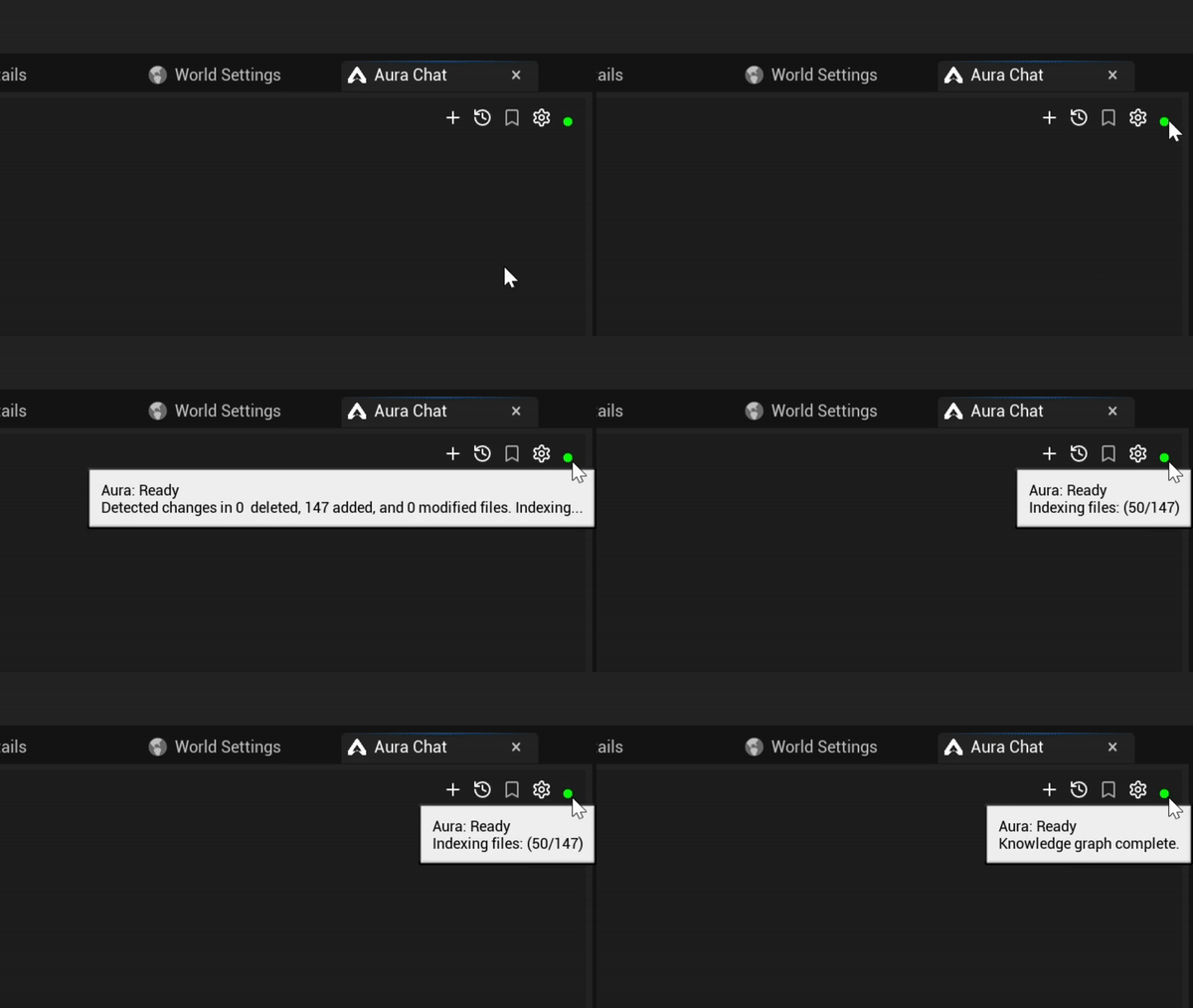
⚠️ The editor may slow down when Aura is indexing large files such as art assets.
To stop, delete, or redo indexing, go to Editor Preferences > Aura > Index Settings.
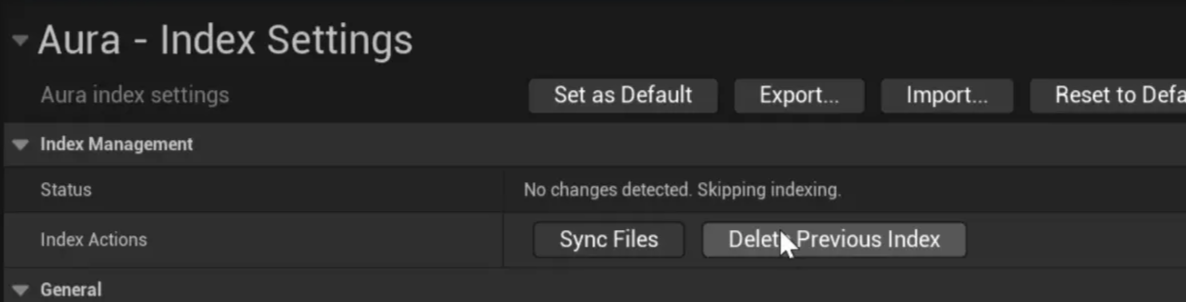
Indexing large projects can take a little while. You can control which folders Aura indexes through the INDEX_IGNORE.txt file.
-
Go to
<ProjectName>/Saved/.Aura. -
Open
INDEX_IGNORE.txtand include the folders to ignore. Save your changes. -
In Aura, delete the previous index and click Sync again.
Other Index Settings
Aura will automatically index your project on the first-time open and when a change is detected (e.g. file deletion, rename, creation).
You can control auto-index settings in Editor Preferences > Aura > Index Settings
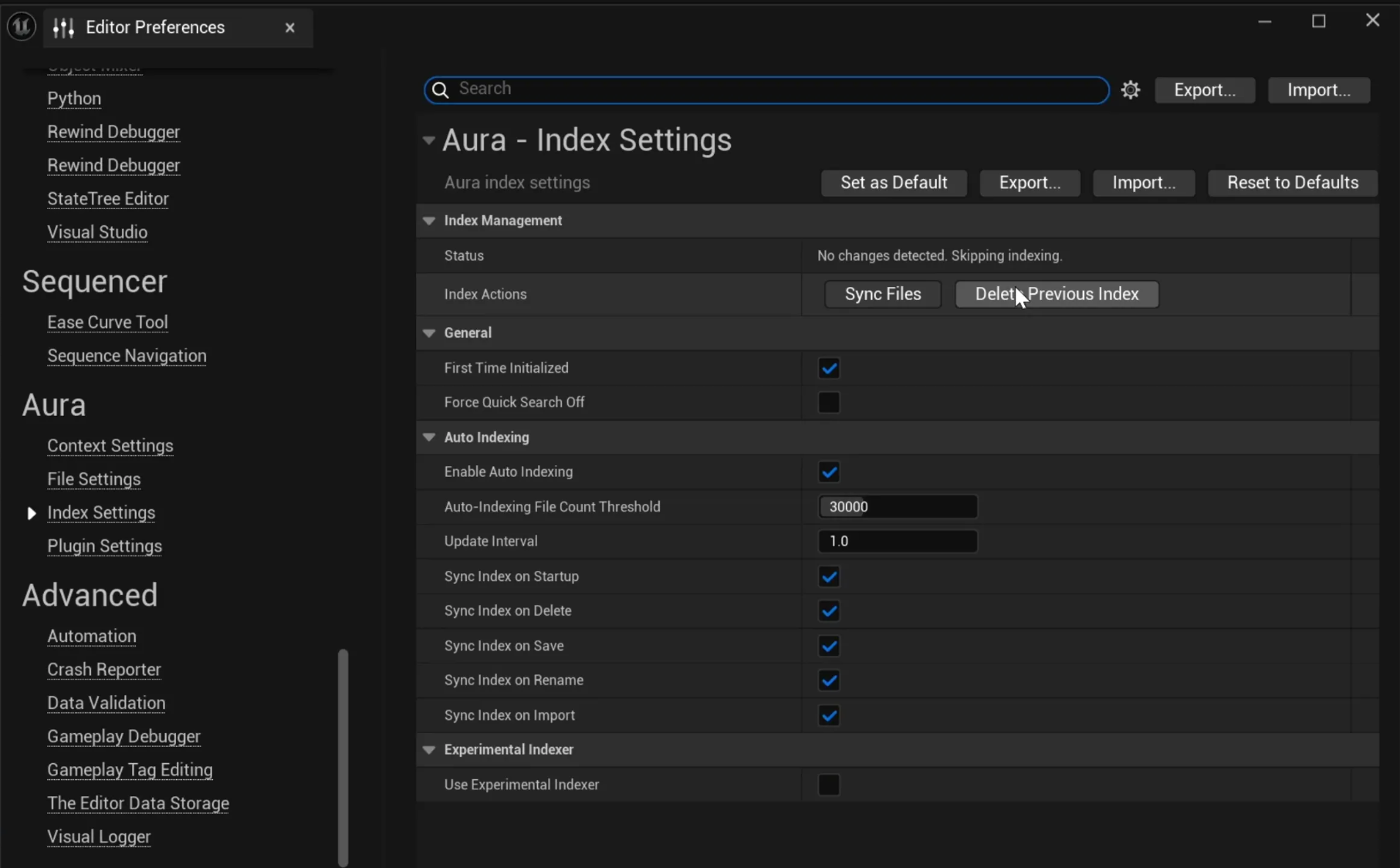
💡 If you have a large project where indexing often isn’t feasible, you can turn auto-indexing off and stick to quick search only.
Quick Search
This is the default search tool Aura uses to find relevant files and assets immediately, even before indexing is complete.
💡 You can set up a project memory that Aura will check every time. Learn more in Advanced Settings.
You can tweak quick search settings in Editor Preferences > Aura > Index Settings too.