Unreal Engine
Material Agent
Aura can create and edit Unreal Engine materials from text descriptions. Describe the look you're going for and Aura will build the material graph, set up parameters, and save it to your project. Aura can apply the material to actors and assets too.
ℹ️ Make sure you're in Agent mode to use the Material Agent.
Creating a Material
What Aura can create:
-
PBR materials (base color texture, metallic float value, roughness float value, specular float value)
-
Unlit materials
-
Emissive / glow effects
-
Panning / animated materials (waterfalls, energy effects)
-
Water materials with wave motion
-
Decal materials (UE 5.3 through 5.8, including Substrate projects)
-
Landscape materials with multiple layers
Examples
-
"Create a tree trunk material for a redwood tree."
-
"Create a glowing energy crystal material with adjustable intensity."
-
"Create an unlit stone wall material and apply it to the selected object in my level."
-
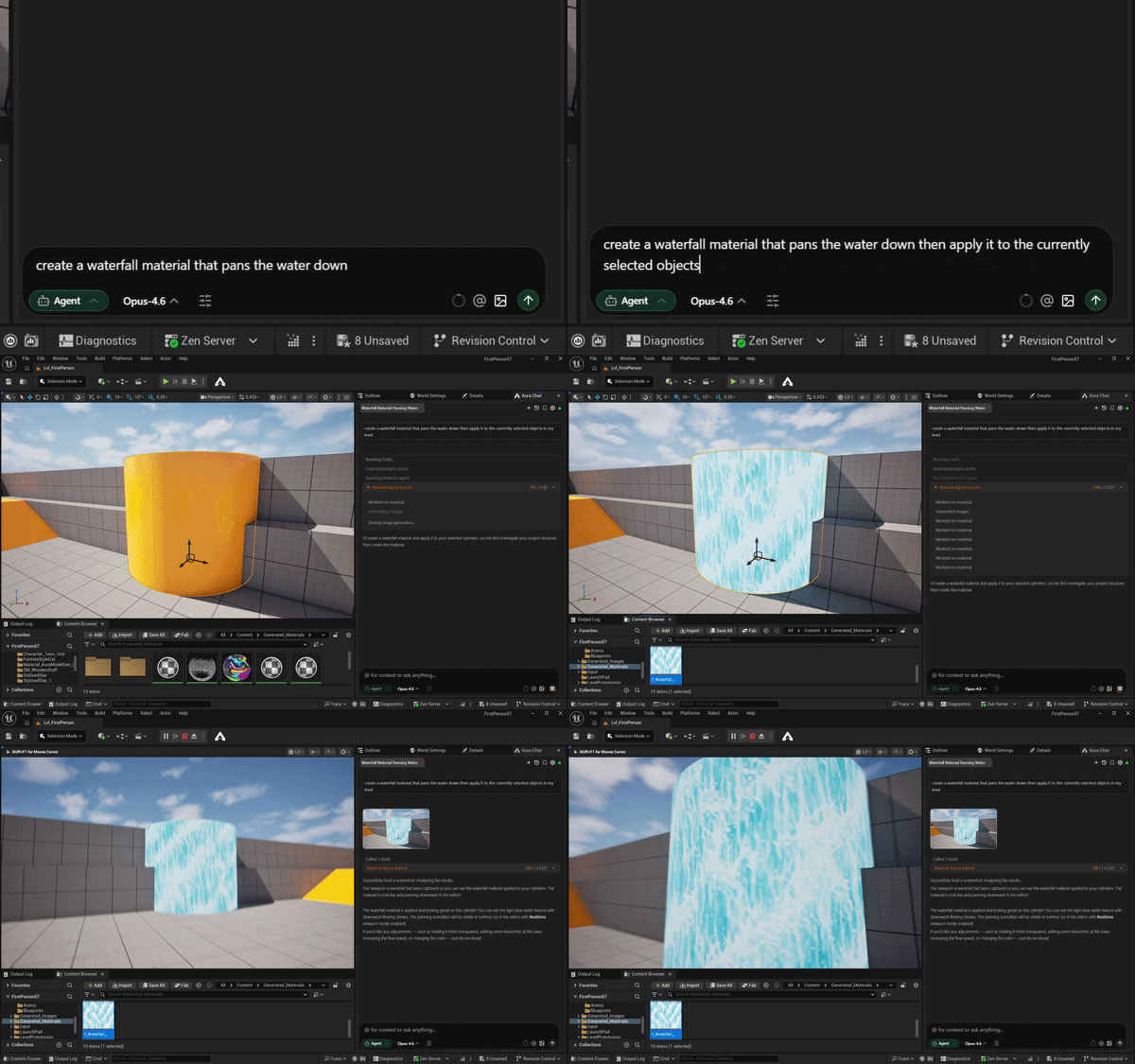
"Create a waterfall material that pans the water downward."
-
"Create a decal material for bullet holes."
-
"Create a landscape material with three layers: grass, dirt, and rock."
💡 Create a piece of simple geometry (a Box or Plane) in your level first — it makes it easy to drag materials onto it and see results immediately.
Editing a Material
You can also make follow-up edits in the same thread:
-
"Change the energy crystal material to a more purple color."
-
"Add a fresnel edge glow to the material."
Reusable Graphs
When the same node network is needed by more than one material — a rust mask, a wind sway, a triplanar sampler — Aura can build it once as a Material Function and call it from each material that needs it. Edit the function and every dependent material picks up the change.
Examples
-
"Make a reusable material function for triplanar texture sampling."
-
"Pull the rust masking out into a function and use it in both metal materials."
Aura can also create Material Parameter Collections — global parameters that many materials read from at once. One value updates everything reading it, and it can be driven at runtime from Blueprint.
Examples
-
"Create a parameter collection with a wind speed scalar and a season tint color."
-
"Have the foliage materials read wind strength from a shared parameter collection."
💡 One-off logic used by a single material stays inline in that material's graph — Aura reaches for a function when there's genuine reuse.
Material Functions and Parameter Collections work on every supported Unreal Engine version.
Custom HLSL Nodes
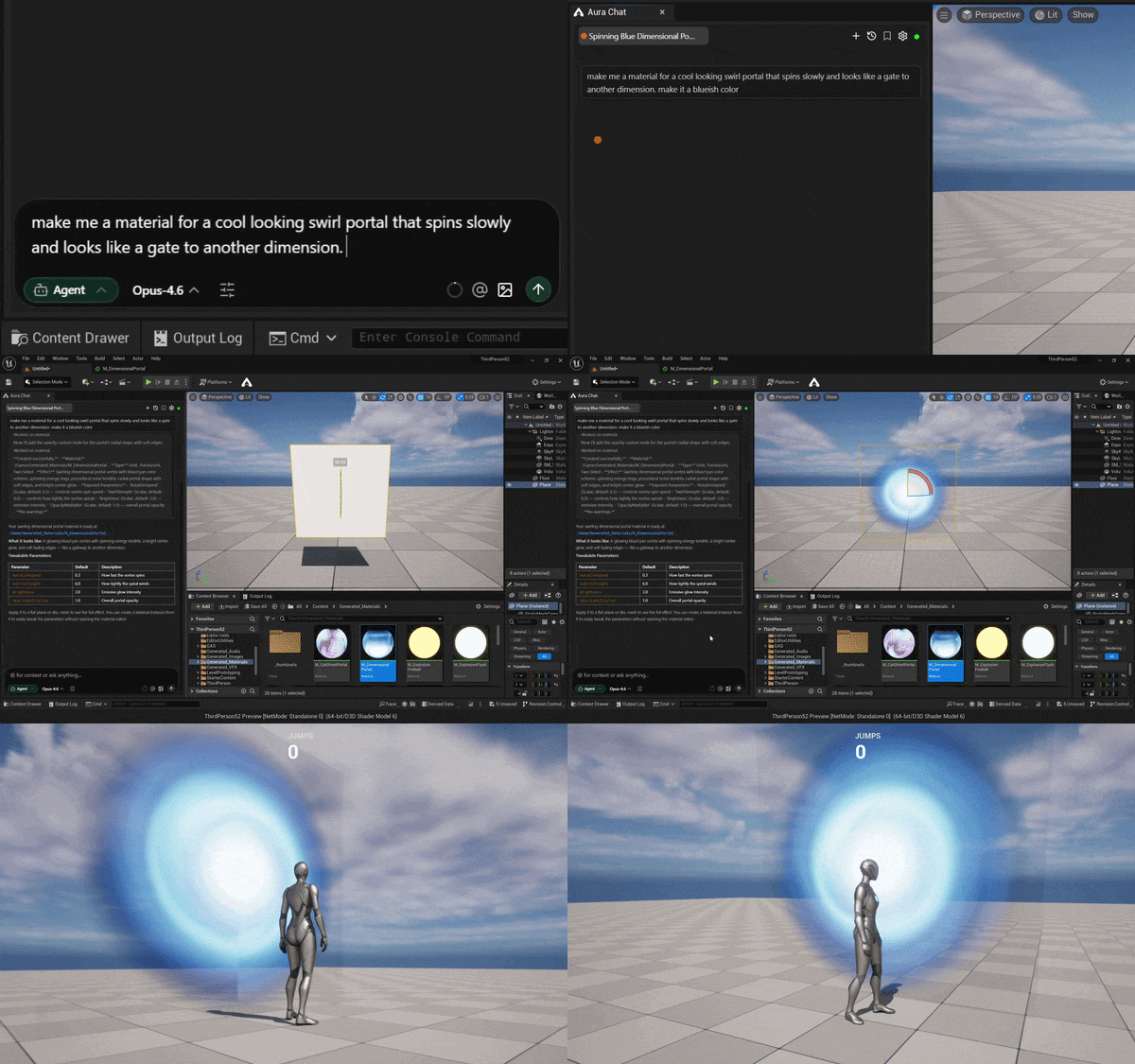
The Material Agent can create custom HLSL nodes, allowing it to build more advanced material designs that go beyond the standard node graph.
Example prompt:
- "Make a material for a cool looking swirl portal that spins slowly and looks like a gate to another dimension. Make it a blueish color."
Textures and PBR Channels
Aura generates the color / albedo texture for your material, and derives a normal map from it when the surface calls for genuine relief. The normal map is produced by a local filter rather than an image model, so it costs no image generations and lines up with the albedo pixel for pixel at the same resolution, in Unreal's expected green-channel convention.
Because that filter reads brightness as height, it suits surfaces whose albedo actually describes relief — brick, stone, bark, fabric weave. Flat printed artwork like labels or UI graphics has no real relief to find, so a normal map there adds little. Tell Aura if a feature should read the other way round, such as dark grout standing proud instead of recessed.
Roughness, metallic, and specular are set as scalar values, not textures. This is deliberate: a grayscale map imports with the wrong color space and comes back gamma-skewed, so a scalar is both more reliable and easier to tune afterwards. Ask for a "roughness map" and Aura will set the roughness channel and tell you it used a value.
-
"Give the stone wall material a normal map with stronger relief."
-
"Make this material rougher — around 0.8."
Substrate
Substrate is a project-wide engine setting, not a per-material option. Epic makes it the default for new projects in UE 5.8, and it can't coexist with legacy material rendering — a project is either on Substrate or it isn't, decided once for the whole project.
When Substrate is enabled, every material in the project routes through a Front Material node, and the familiar root pins (Base Color, Emissive, Opacity, and so on) become inputs to that node. Aura adds it automatically. This is correct engine behavior, not a fault in the material.
Decals look different again under Substrate: they end in a Slab BSDF feeding a Convert To Decal node rather than the usual single node. That chain is what makes a deferred decal actually render, so it's expected on any decal in a Substrate project.
ℹ️ Asking for a "legacy" or "non-Substrate" material in a Substrate project won't work — and that's an engine limitation, not Aura declining the request. Unreal has no per-material opt-out. Aura will still build exactly the material you described, with the right shading model, blend mode, and graph; it just arrives wired through the Front Material node. If you need legacy materials, Substrate has to be turned off for the whole project.
Inspecting a material works the same either way — Aura reports the Front Material node's inputs under the familiar names, so you don't have to read the graph differently.
Save Location
Generated materials are saved to the directory set in Edit > Editor Preferences > Aura > File Settings > Material Generation Output Directory.
Current Limitations
⚠️ Node graph layout: Material node graphs are currently laid out without spacing, so all nodes will appear stacked in the center of the graph. This is a cosmetic issue only — the material will function correctly.