Start here
Unity Troubleshooting
Unity-specific issues that aren't covered by the shared troubleshooting tree. For general issues (account, login, chat threads, server connection), start with the parent Troubleshooting page.
AuraForUnity won't launch
If the AuraForUnity desktop app doesn't open after install:
- Windows SmartScreen — on first launch, Windows may show a "Windows protected your PC" dialog. Click
More info > Run anyway. Signed installers clear this automatically on subsequent launches. - macOS Gatekeeper — if macOS says the app "cannot be opened because the developer cannot be verified," right-click the app in Finder and pick
Open, then confirm in the dialog. This only needs to be done once per install. - Antivirus / endpoint protection — some enterprise EDR tools quarantine Electron apps. Whitelist
AuraForUnity.exe(Windows) orAuraForUnity.app(macOS) and try again. - Firewall — AuraForUnity needs outbound HTTPS and a local TCP connection to the Unity plugin. If you're behind a restrictive firewall, allow the app.
Aura can't see my Unity project
The AuraForUnity desktop app connects to a specific Unity project at a time. If it says "no Unity project connected" or keeps landing on the wrong one:
- Make sure Unity Editor is open and focused on the project you want Aura to work with. The AuraUnityPlugin registers itself when the editor loads.
- Check that the plugin is installed (
Window > Package Manager— look for the AuraUnityPlugin entry under In Project). - Check the Unity console for any AuraUnityPlugin errors that might have blocked startup.
- If multiple Unity projects are open, confirm AuraForUnity is connected to the right one. AuraForUnity runs as a single window — use the project selector in the top-left to switch between Aura-ready projects. The currently connected project is shown next to the green dot.
- As a last resort, quit AuraForUnity and relaunch it from
Aura > Open Aurainside Unity — the plugin re-registers the project on every launch.
Internally, AuraForUnity auto-detects running Unity projects via registration files written by the plugin. On Windows these live under %LOCALAPPDATA%\AuraForUnity\UnityProjects\, and on macOS under ~/Library/Application Support/AuraForUnity/UnityProjects/. If that directory doesn't exist or is empty while Unity is running, the plugin isn't registering — check for Unity console errors and confirm the plugin is enabled.
Working across multiple Unity projects
AuraForUnity runs as a single desktop window regardless of how many Unity Editors you have open. Every Unity project that has the AuraUnityPlugin installed and is currently running registers itself as "Aura-ready" — you pick which one AuraForUnity is connected to using the project selector in the top-left of the window.
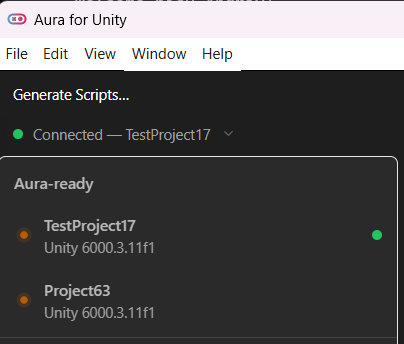
- The currently connected project is shown on the
Connected — <project>row, next to a green dot. Click the chevron to open the full list of Aura-ready projects and switch between them. - Closing a Unity Editor automatically removes that project from the list. If it was the active one, AuraForUnity falls back to the selector so you can pick another.
- The project selector also shows the Unity version next to each entry, which is handy when you're bouncing between a 2022 LTS project and a Unity 6 project on the same machine.
- Only one MCP server connection is active at a time — the one backing the currently selected project — so switching projects is effectively free in terms of resources.
Plugin not detected
If Aura > Open Aura is missing from the Unity menu bar or the AuraForUnity app reports the plugin isn't responding:
- Confirm the plugin was added. Open
Window > Package Manager, filter to In Project, and look for AuraUnityPlugin. If it's missing, re-add it viaAdd package from git URL…using the git URL on the AuraForUnity download page. - Make sure your project is Unity 2022.3 LTS or newer. Earlier versions are not supported.
- Check the Unity console for compile errors. The plugin's editor code won't load if anything in
Assets/fails to compile — resolve those errors first. - If you recently updated the plugin, restart the Unity Editor. Unity sometimes holds on to the older assembly until a full reload.
Logs and diagnostics
When you need to file a bug or dig deeper, the logs below are the right starting points:
- AuraForUnity app logs — the bundled MCP server writes a per-process log file. On Windows:
%LOCALAPPDATA%\AuraForUnity\Logs\aura_unity_mcp_{pid}.log. On macOS:~/Library/Application Support/AuraForUnity/Logs/aura_unity_mcp_{pid}.log. Files rotate daily and are kept for 3 days. - Unity console — AuraUnityPlugin errors surface here. Filter the console by "Aura" to find them quickly.
- Chat export — when reporting chat-specific issues to the Aura team, include a chat export. Open
Tools > Export Chatin the AuraForUnity chat UI.
Coplay → AuraForUnity transition
If you're an existing Coplay subscriber:
- Both can run side-by-side. The Coplay plugin and AuraForUnity do not conflict — you can keep using Coplay for day-to-day work while trying AuraForUnity on the same project.
Ctrl+Gopens the AuraForUnity window once the AuraUnityPlugin is installed. If you still have the Coplay plugin installed,Ctrl+Gmay open the Coplay chat instead depending on which plugin is loaded — check the Unity menu bar to confirm.- Accounts are separate. Your Coplay subscription stays on the Coplay backend until it expires; you sign up for Aura separately. See the acquisition announcement for details and any active signup incentives.
Related troubleshooting
For issues that aren't Unity-specific, see:
- Installation Issues — installer and reinstall problems.
- Aura Connection Issues — server connection, localhost conflicts.
- Account Creation Issues — signup and login.
- Chat Thread Issues — message errors, fetch failures.
- FAQ — usage limits and common questions.